User Guide
SoCcer Manager is a desktop app for soccer academy managers, coaches, and team administrators who need to manage players and staff across multiple teams. It is optimized for use via a Command Line Interface (CLI), where users type commands, while still having the benefits of a Graphical User Interface (GUI), the visual app window. If you can type fast, SoCcer Manager can get your team management tasks done faster than traditional GUI apps.
- Quick start
-
Features
- Viewing help :
help - Adding a person:
add - Adding a match:
matchadd - Adding a training session:
trainingadd - Listing persons:
list - Marking attendance for events:
attendancemark - Viewing attendance for events:
attendance - Sorting persons:
sort - Filtering persons:
filter - Player Stats
- Attributes
- Editing a person :
edit - Editing an event:
eventedit - Locating persons by name:
find - Deleting a person :
delete - Deleting an event :
eventdelete - Bulk deleting persons by tag, team, or status :
deletebulk - Clearing all entries :
clear - Exiting the program :
exit - Import CSV :
importcsv - Saving the data
- Editing the data file
- Viewing help :
- FAQ
- Known issues
- Command summary
Quick start
-
Ensure you have Java
17or above installed on your computer.
Mac users: Ensure you have the precise JDK version prescribed here. -
Download the latest
.jarfile from here. -
Copy the file to the folder you want to use as the home folder for your SoCcer Manager data.
-
Open a command terminal,
cdinto the folder you put the jar file in, and use thejava -jar soccermanager.jarcommand to run the application.
A GUI similar to the below should appear in a few seconds. Note how the app contains some sample data.
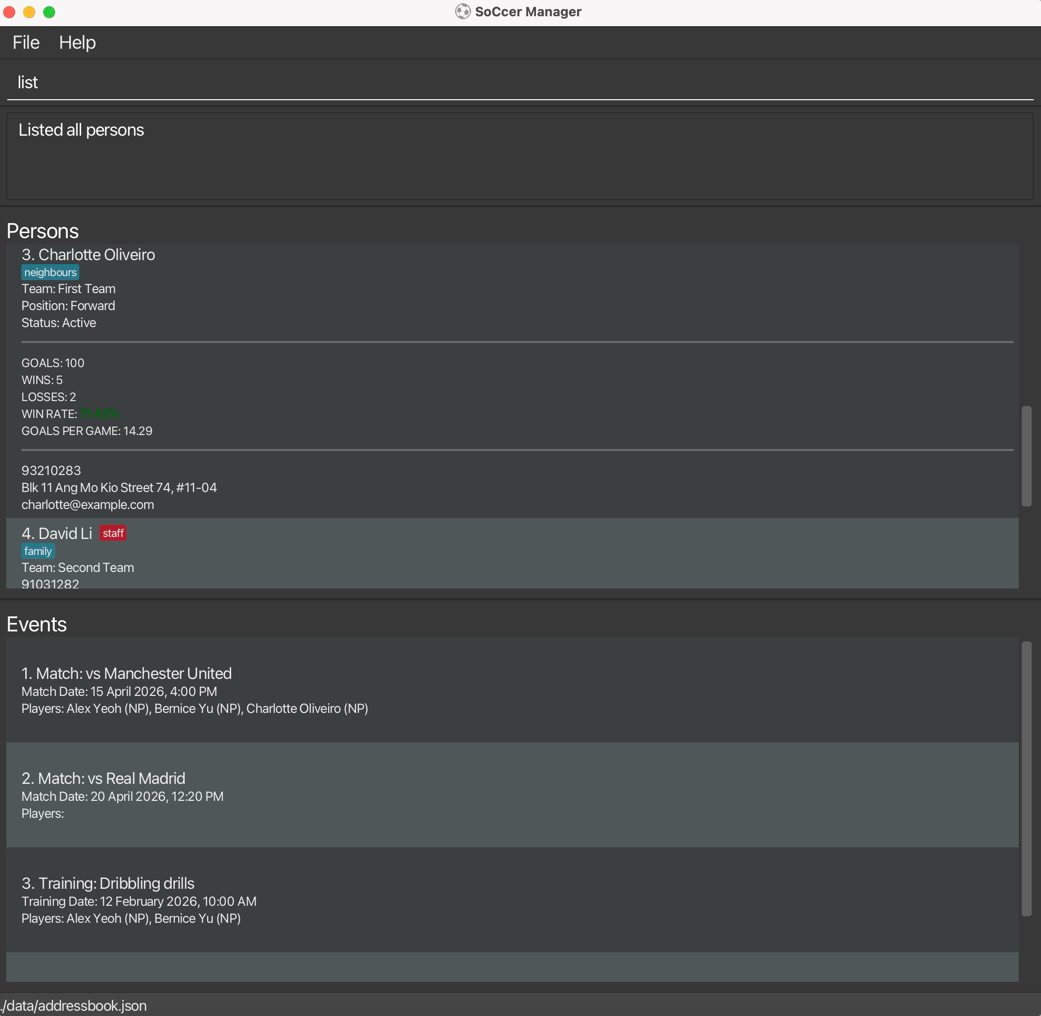
If double-clicking the jar does not launch the app on your system, use the terminal command above instead. Also avoid storing the jar in a write-protected folder, which is a folder where your computer does not allow the app to create or update files.
-
Type the command in the command box and press Enter to execute it. e.g. typing
helpand pressing Enter will open the help window.
Some example commands you can try:-
list: Lists all persons. -
list r/player: Lists only players. -
list r/staff: Lists only staff. -
sort by/name: Sorts all persons by name in ascending order. -
sort r/player by/email desc: Sorts only players by email in descending order. -
sort by/team: Sorts all persons by team in ascending order. -
sort r/staff by/status: Sorts only staff by status in ascending order. -
sort r/player by/goals desc: Sorts only players by goals in descending order. -
filter r/player pos/Forward goals/>10: Shows players in the Forward position with more than 10 goals. -
add n/John Doe r/player p/98765432 e/johnd@example.com a/John street, block 123, #01-01: Adds a player namedJohn Doeto SoCcer Manager. -
delete 3: Selects the 3rd contact for deletion, then confirm withyorn. -
clear: Immediately clears all persons and events while keeping the default Team/Status/Position catalogs. Use with care. -
exit: Exits the app.
-
-
Refer to the Features below for details of each command.
Features
 Notes about the command format:
-
Words in
UPPER_CASEare the parameters to be supplied by the user.
e.g. inadd n/NAME,NAMEis a parameter which can be used asadd n/John Doe. -
Items in square brackets are optional.
e.gn/NAME [t/TAG]can be used asn/John Doe t/friendor asn/John Doe. -
Items with
… after them can be used multiple times including zero times.
e.g.[t/TAG]…can be used ast/friend,t/friend t/familyetc. -
Parameters can be in any order.
e.g. if the command specifiesn/NAME p/PHONE_NUMBER,p/PHONE_NUMBER n/NAMEis also acceptable. -
Extraneous parameters for some commands that do not take in parameters (such as
help,exitandclear) will be ignored.
e.g. if the command specifieshelp 123, it will be interpreted ashelp.
Some fixed-format commands such asteamlist,statuslist, andpositionlistreject extra input instead. -
If you are using a PDF version of this document, be careful when copying and pasting commands that span multiple lines as space characters surrounding line-breaks may be omitted when copied over to the application.
Viewing help : help
Shows a message explaining how to access the help page.

Format: help
Adding a person: add
Adds a player/staff to SoCcer Manager.
Format: add n/NAME r/ROLE p/PHONE_NUMBER e/EMAIL a/ADDRESS [tm/TEAM] [st/STATUS] [pos/POSITION] [t/TAG]…
 Tip:
A person can have any number of tags (including 0)
❗The role of the contact must be specified (r/player or r/staff).
Notes:
-
tm/TEAM,st/STATUS, andpos/POSITIONare optional. - A person’s name is case insensitive. If
Alex Yeohexists in SoCcer Manager,alex yeohwill not be allowed to be added. - If omitted, defaults are used:
Unassigned Team,Unknown,Unassigned Position. - If provided,
TEAM/STATUS/POSITIONmust already exist in their respective catalogs (see Attributes). - For person assignment, input is normalized to the matched catalog entry’s exact casing
(e.g., if
teamlistcontainsthird team, thentm/Third Teamis stored asthird team). This applies toadd/editperson commands. -
pos/is only applicable to players; staff cannot be assigned a non-default position.
Examples:
add n/John Doe r/player p/98765432 e/johnd@example.com a/John street, block 123, #01-01add n/Betsy Crowe r/staff t/physio e/betsycrowe@example.com a/Newgate Prison p/1234567 st/Activeadd n/John Doe r/player p/98765432 e/johnd@example.com a/John street tm/First Team st/Active pos/Forward
Adding a match: matchadd
Adds a match to the address book.
Format: matchadd n/OPPONENT_NAME d/DATE [st/STATUS] [pos/POSITION] [tm/TEAM] [pl/PLAYER_NAME]…
Notes:
- Date must have format
yyyy-MM-dd HHmm - Variable number of players can be added to the match, and must exist in the address book
- Status, position and team are optional. If specified, will add all players that match ALL the parameters.
- Warning: Currently, the app allows for players to be a part of multiple trainings/matches at the same time slot. See Planned Enhancements
Examples:
matchadd n/Manchester United d/2026-05-15 1600matchadd n/Manchester United d/2026-05-15 1600 pl/John Doematchadd n/Manchester United d/2026-05-15 1600 st/Active tm/First Team
Adding a training session: trainingadd
Adds a training session to the address book.
Format: trainingadd n/TRAINING_NAME d/DATE [st/STATUS] [pos/POSITION] [tm/TEAM] [pl/PLAYER_NAME]…
Notes:
- Date must have format
yyyy-MM-dd HHmm - Variable number of players can be added to the training session, and must exist in the address book
- Status, position and team are optional. If specified, will add all players that match ALL the parameters.
- Warning: Currently, the app allows for players to be a part of multiple trainings/matches at the same time slot. See Planned Enhancements
Examples:
trainingadd n/Warm Up d/2026-05-15 1600trainingadd n/Run Laps d/2026-05-15 1600 pl/John Doetrainingadd n/Passing Drills d/2026-05-15 1600 st/Active tm/First Team
Listing persons: list
Shows persons in SoCcer Manager, optionally filtered by role, team, status, and position.
Format:
-
list(shows all persons) list r/ROLElist [r/ROLE] [tm/TEAM] [st/STATUS] [pos/POSITION]
Notes:
-
r/,tm/,st/, andpos/can be combined in a singlelistcommand. - Role values are case-insensitive. e.g.
list r/PLAYER,list r/Staff. - If
r/is omitted, matching persons from all roles are shown. - Invalid role arguments are rejected. Use only
r/playerorr/staff. - Invalid
tm/,st/, orpos/values are rejected if they do not exist in the current catalog.
Examples:
listlist r/playerlist r/stafflist tm/First Teamlist r/player st/Active pos/Defender
Marking attendance for events: attendancemark
Marks attendance for specified players for the specified event.
Format: attendancemark INDEX [pl/PLAYER_NAME]…
Notes:
- The event index provided must be a valid index.
- The players provided must exist in the addressbook and also be part of the event player list.
- Players who are not present have (NP) beside their name in the event player list. Those who are present have (P) instead.
- Warning: Attendance can only be marked currently. Once a player is marked for attendance, they cannot be unmarked. See Planned Enhancements
Examples:
attendancemark 1 pl/Alex Yeohattendancemark 2 pl/Alex Yeoh pl/Bernice Yu
Viewing attendance for events: attendance
Shows a summary of player attendance for events for every player in the address book.
Format: attendance
Notes:
- There must be at least 1 event and 1 player in the address book.
- The attendance rates are rounded to one decimal place.
- Sorted in descending order, highest attendance rate shown at the top.
- If a player is not in any event, they will be skipped in the attendance report.
Sorting persons: sort
Sorts persons in the UI by a supported attribute.
Format:
sort by/ATTRIBUTEsort r/player by/ATTRIBUTEsort r/staff by/ATTRIBUTE- Add optional
descat the end for descending order
Supported attributes:
nameemailteamstatuspositiongoalswinslossesdraws
Notes:
-
goals,wins,losses, anddrawsare player-only sort attributes. -
sort by/goals,sort by/wins,sort by/losses, andsort by/drawswill show only players. -
sort r/staff by/goals,sort r/staff by/wins,sort r/staff by/losses, andsort r/staff by/drawsare invalid.
Examples:
sort by/namesort r/player by/emailsort by/teamsort by/statussort r/player by/position descsort by/wins descsort r/player by/goals descsort by/drawssort r/staff by/name desc
Multi-step examples:
- Run
list r/staff. - Run
sort by/status. -
The roster remains sorted by
statususing the current visible list. - Run
list r/staff. - Run
sort by/goals. - The view switches to players only, because
goalsis a player-only sort attribute.
Filtering persons: filter
Filters persons in the UI using structured attribute and stat criteria.
Format:
filter [r/ROLE] [tm/TEAM] [st/STATUS] [pos/POSITION] [goals/[>|<|=]NUM] [wins/[>|<|=]NUM] [losses/[>|<|=]NUM] [draws/[>|<|=]NUM]
Rules:
- All provided filters are combined using AND semantics.
- Invalid
tm/,st/, orpos/values are rejected if they do not exist in the current catalog. -
goals,wins,losses, anddrawsfilters apply only to players. - Use
listto reset the filtered view and show all persons again.
Examples:
filter r/playerfilter tm/First Team st/Activefilter pos/Forward goals/>10filter wins/<3filter r/player losses/=0filter draws/=2
Player Stats
Every player will have stats that denote their individual performance. These stats can be modified by the user via commands.
Note:
- Staff do not have any performance stats.
- Player stats will not persist if player becomes a staff.
- A staff will have the default state of performance stats when converted to a player.
- Values cannot be more than the
Integermax limit (2,147,483,647)
Current valid stats: goals, wins, losses, draws
Set player stat: set
Sets a specific stat of a player to a given value.
Format: set INDEX STAT VALUE
Examples:
set 1 goals 7set 3 wins 3
Update player stat: update
Updates a specific stat of a player by incrementing it by a given value. (can be negative)
Format: update INDEX STAT VALUE
Examples:
update 1 goals 3update 3 wins -2
Attributes
SoCcer Manager starts with sample team, status, and position catalog entries in a fresh setup.
Default catalogs:
- Team:
Unassigned Team,First Team,Second Team - Position:
Unassigned Position,Goalkeeper,Defender,Midfielder,Forward - Status:
Unknown,Active,Unavailable
Catalog behavior:
- Protected defaults cannot be edited or deleted (
Unassigned Team,Unassigned Position,Unknown). - Deletion is blocked when the value is currently assigned to any person.
- Renaming a catalog value automatically updates all persons currently assigned that value.
- When creating catalog entries (
teamadd/statusadd/positionadd), entered display casing is preserved. Matching and uniqueness checks remain case-insensitive. - Team, status, and position names must start and end with a letter or number. They may contain only letters, numbers, spaces, and hyphens in between.
Role applicability:
-
TeamandStatusapply to both players and staff. -
Positionis player-only; staff always useUnassigned Position.
Display behavior:
- Person cards show
Team,Status, andPositiononly when the value is non-default.
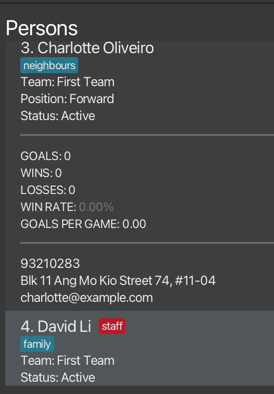
For attribute catalog commands, value matching is case-insensitive. This means both *edit and *delete
commands work regardless of letter case (for example, teamdelete reserve team matches Reserve Team).
Case-only renames are supported for attribute edit commands. For example, if R exists in a catalog,
teamedit old/R new/r (and similarly for statusedit / positionedit) updates the displayed casing.
Listing attribute catalog values: teamlist, statuslist, positionlist
Shows all values in the selected attribute catalog.
Formats:
teamliststatuslistpositionlist
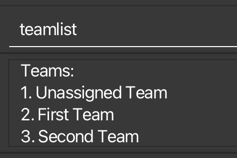
Adding attribute catalog values: teamadd, statusadd, positionadd
Adds a value to the selected attribute catalog.
Formats:
teamadd TEAM_NAMEstatusadd STATUS_NAMEpositionadd POSITION_NAME
Examples:
teamadd Reserve Teamstatusadd Rehabpositionadd Winger
Editing attribute catalog values: teamedit, statusedit, positionedit
Renames an existing value in the selected attribute catalog.
Formats:
teamedit old/OLD_TEAM_NAME new/NEW_TEAM_NAMEstatusedit old/OLD_STATUS_NAME new/NEW_STATUS_NAMEpositionedit old/OLD_POSITION_NAME new/NEW_POSITION_NAME
Examples:
teamedit old/First Team new/Reserve Teamstatusedit old/Active new/Rehabpositionedit old/Defender new/Center Back
Deleting attribute catalog values: teamdelete, statusdelete, positiondelete
Deletes an existing value from the selected attribute catalog.
Formats:
teamdelete TEAM_NAMEstatusdelete STATUS_NAMEpositiondelete POSITION_NAME
Examples:
teamdelete Reserve Teamstatusdelete Rehabpositiondelete Winger
Editing a person : edit
Edits an existing person in SoCcer Manager.
Format: edit INDEX [n/NAME] [p/PHONE_NUMBER] [e/EMAIL] [a/ADDRESS] [r/ROLE] [tm/TEAM] [st/STATUS] [pos/POSITION] [t/TAG]…
Notes:
- Edits the person at the specified
INDEX. The index refers to the index number shown in the displayed person list. The index must be a positive integer 1, 2, 3, … - At least one of the optional fields must be provided.
- Existing values will be updated to the input values.
- If provided,
tm/TEAM,st/STATUS, andpos/POSITIONmust already exist in their respective catalogs. - For person assignment, input is normalized to the matched catalog entry’s exact casing
(e.g., if
teamlistcontainsthird team, thentm/Third Teamis stored asthird team). -
pos/is only applicable to players. - If the resulting role is
staff, any providedpos/is rejected. - When editing tags, the existing tags of the person will be removed. Tag editing is not cumulative.
- You can remove all the person’s tags by typing
t/without specifying any tags after it.
Examples:
-
edit 1 p/91234567 e/johndoe@example.comEdits the phone number and email address of the 1st person to be91234567andjohndoe@example.comrespectively. -
edit 2 n/Betsy Crower t/Edits the name of the 2nd person to beBetsy Crowerand clears all existing tags.
Editing an event: eventedit
Edits an existing event in SoCcer Manager.
Format: eventedit INDEX [n/EVENT_NAME] [et/EVENT_TYPE] [d/DATE] [pl/PLAYER_NAME]…
- Edits the event at the specified
INDEX. The index refers to the index number shown in the displayed event list. The index must be a positive integer 1, 2, 3, … - At least one of the optional fields must be provided.
-
et/EVENT_TYPEmust beMATCHorTRAINING - When editing players, the existing players will be removed i.e adding of players is not cumulative.
- You can remove all players by typing
pl/without specifying any tags after it.
Examples:
-
eventedit 1 et/TRAINING d/2026-01-01 1200Edits the event type and date of the 1st event to beTRAININGand2026-01-01 1200respectively. -
eventedit 2 n/Barcelona pl/Edits the name of the 2nd event to beBarcelonaand clears all existing players involved.
Locating persons by name: find
Finds persons whose names contain any of the given keywords, optionally limited by role.
Format: find [r/ROLE] KEYWORD [MORE_KEYWORDS]
- The search is case-insensitive. e.g
hanswill matchHans - The order of the keywords does not matter. e.g.
Hans Bowill matchBo Hans - Only the name is searched.
- Prefixing with
r/playerorr/stafflimits the results to that role. The role prefix can appear before or after the keywords. - Only full words will be matched e.g.
Hanwill not matchHans - Persons matching at least one keyword will be returned (i.e.
ORsearch). e.g.Hans Bowill returnHans Gruber,Bo Yang
Examples:
-
find JohnreturnsjohnandJohn Doe -
find r/player Johnreturns players whose names matchJohn -
find alex r/staffreturns staff whose names matchalex -
find r/staff alex davidreturns staff whose names matchalexORdavid -
find staff bentreatsstaffas a normal name keyword (general search) -
find alex davidreturnsAlex Yeoh,David Li
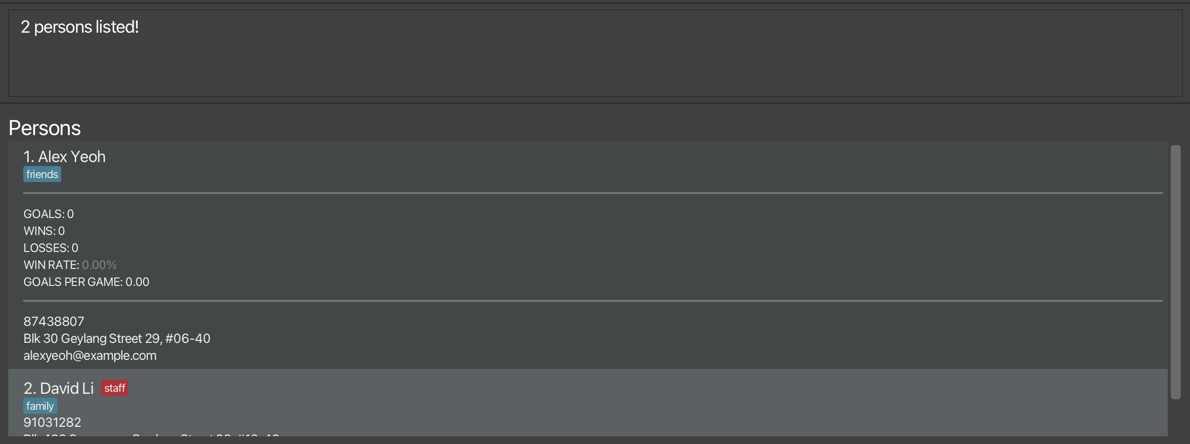
Deleting a person : delete
Deletes a person from SoCcer Manager by list index or name keywords.
Format: delete INDEX or delete n/NAME [MORE_KEYWORDS]
-
delete INDEXselects the person at the specifiedINDEX. - The index refers to the index number shown in the displayed person list.
-
delete n/NAME [MORE_KEYWORDS]searches by name (same name-matching rules asfind). - Use
n/when deleting by name, especially if the name contains values such asY,N, or numbers. - If one person matches, it will show that person and ask for confirmation.
- If multiple persons match, it will show a clash list with indexes. Enter the clash index to choose a person.
- To confirm or cancel deletion, type
y/Yorn/N. - The index must be a positive integer 1, 2, 3, …
- Deleting a person will remove them from all events of which they are currently a part of.
Examples:
-
listfollowed bydelete 2, thenydeletes the 2nd person in SoCcer Manager. -
delete n/Bernice, thenncancels deletion. -
delete n/Meier, then2, thenydeletes the 2nd matched person in the clash list. -
delete n/Amy YtreatsAmy Yas a literal name target. -
delete n/2treats2as a literal name target.
Step-by-step examples:
-
To delete a single matched person: Run
delete n/Bernice. If exactly one person matches, SoCcer Manager shows that person and asks for confirmation. Typeyto delete the person, ornto cancel. -
To delete when multiple persons match: Run
delete n/Meier. If multiple persons match, SoCcer Manager shows a numbered clash list. Type the clash index shown in the message, for example2. After the person is selected, typeyto confirm deletion ornto cancel.
Deleting an event : eventdelete
Format: eventdelete INDEX
-
eventdelete INDEXselects the event at the specifiedINDEX - The index refers to the index number shown in the displayed event list.
- The index must be a positive integer 1, 2, 3, …
Examples:
-
eventdelete 2deletes the second event in the list.
Bulk deleting persons by tag, team, or status : deletebulk
Deletes all persons that share a specified tag, team, or status.
Format: deletebulk [t/TAG | tm/TEAM | st/STATUS]
-
deletebulk [t/TAG | tm/TEAM | st/STATUS]filters and shows matching persons in the GUI list and CLI message. - To confirm or cancel bulk deletion, type
y/Yorn/N. - Exactly one filter must be provided.
- Both players and staff with the specified tag, team, or status are considered.
Examples:
-
deletebulk t/graduated, thenydeletes all persons taggedgraduated. -
deletebulk tm/Reserve Team, thenydeletes all persons assigned toReserve Team. -
deletebulk st/Unavailable, thenncancels the bulk deletion.
Step-by-step example:
- Run
deletebulk tm/Reserve Team. - SoCcer Manager shows all matching persons in the message and in the current list.
- Review the affected persons before confirming.
- Type
yto delete all shown matches, ornto cancel.
Clearing all entries : clear
Immediately clears all persons and events from SoCcer Manager while keeping the default Team, Status, and Position catalogs.
Notes:
-
clearexecutes immediately when entered. - There is no confirmation step before the address book is cleared.
- Use this command carefully because it removes all persons and events at once.
Format: clear
Notes:
-
clearexecutes immediately when entered. - There is no confirmation step before the address book is cleared.
- Use this command carefully because it removes all persons and events at once.
Exiting the program : exit
Exits the program.
Format: exit
Import CSV : importcsv
Imports contacts from a given CSV file. Expects the CSV file to follow format strictly.
Expected Headers (in order): name, role, address, phone, email, tags
Note: sometimes saving CSV files in Microsoft Excel will create extra padded commas, the parser will assume that this was not intended by the user and trim it, since you cannot put commas in tags anyway.
If headers are invalid, CSV importing will fail.
-
If row contains invalid fields (eg: name contains symbols, duplicates), the entire row will be skipped, but the importing process will still continue.
- Then, the relevant error messages per row that failed to import will be displayed.
- The CSV can contain commas (
,) as part of the field, but escaped.12 Clementi Road\, 612345
-
For tags, each tag is separated by a semicolon (
;)
Format: importcsv
Example CSV:
name,role,address,phone,email,tags
Alex Tan,player,12 Clementi Road,91234567,alex.tan@example.com,captain;striker
Bernice Lim,staff,45 Jurong West Ave 3,92345678,bernice.lim@example.com,manager
Cheryl Goh,player,89 Bukit Timah Road,93456789,cheryl.goh@example.com,midfielder
Daniel Lee,player,101 Pasir Ris Drive 4,94567890,daniel.lee@example.com,defender
Ethan Ong,staff,22 Tampines Street 11,95678901,ethan.ong@example.com,physio
Saving the data
SoCcer Manager data are saved in the hard disk automatically after any command that changes the data. There is no need to save manually.
Editing the data file
SoCcer Manager data are saved automatically as a JSON file [JAR file location]/data/addressbook.json. Advanced users are welcome to update data directly by editing that data file.
 Caution:
If your edits make the JSON file structurally invalid (e.g., broken JSON syntax), SoCcer Manager may fail to load it and start with an empty address book for that run, while restoring the default Team/Status/Position catalogs. Some malformed rows are auto-recovered (for example, by skipping invalid entries), but this is not guaranteed for all corruption cases. Hence, it is recommended to take a backup of the file before editing it.
Furthermore, certain edits can cause SoCcer Manager to behave in unexpected ways (e.g., if a value entered is outside of the acceptable range). Therefore, edit the data file only if you are confident that you can update it correctly.
FAQ
Q: How do I transfer my data to another Computer?
A: Install the app in the other computer and overwrite the empty data file it creates with the file that contains the data from your previous SoCcer Manager home folder.
Known issues
-
When using multiple screens, if you move the application to a secondary screen, and later switch to using only the primary screen, the GUI will open off-screen. The remedy is to delete the
preferences.jsonfile created by the application before running the application again. -
If you minimize the Help Window and then run the
helpcommand (or use theHelpmenu, or the keyboard shortcutF1) again, the original Help Window will remain minimized, and no new Help Window will appear. The remedy is to manually restore the minimized Help Window. - If the app is stored in a write-protected folder, saving and loading can fail because SoCcer Manager cannot update its data files there.
- On some macOS setups using fullscreen mode, secondary dialogs such as the Help window may behave unexpectedly.
Command summary
| Action | Format, Examples | |
|---|---|---|
| Add |
add n/NAME r/ROLE p/PHONE_NUMBER e/EMAIL a/ADDRESS [tm/TEAM] [st/STATUS] [pos/POSITION] [t/TAG]… e.g., add n/James Ho r/staff p/22224444 e/jamesho@example.com a/123, Clementi Rd, 1234665 tm/First Team st/Active t/friend
|
|
| Match |
matchadd n/OPPONENT_NAME d/DATE [st/STATUS \| pos/POSITION \| tm/TEAM] [pl/PLAYER_NAME]… e.g., matchadd n/Manchester United d/2026-05-15 1600 tm/First Team pl/John Doe
|
|
| Training |
trainingadd n/TRAINING_NAME d/DATE [st/STATUS \| pos/POSITION \| tm/TEAM] [pl/PLAYER_NAME]… e.g., trainingadd n/Warm Up d/2026-06-16 1700 tm/First Team pl/John Doe
|
|
| Attendance | attendance |
|
| Attendance Mark |
attendancemark INDEX [pl/PLAYER_NAME]… e.g., attendancemark 1 pl/Alex Yeoh pl/Bernice Yu
|
|
| Clear | clear |
|
| Delete |
delete INDEX or delete n/NAME [MORE_KEYWORDS]e.g., delete 3 (then y), delete n/Bernice, delete n/Meier (then 2, then y) |
|
| Delete Bulk |
deletebulk [t/TAG \| tm/TEAM \| st/STATUS]e.g., deletebulk st/Unavailable (then y or n) |
|
| Edit |
edit INDEX [n/NAME] [p/PHONE_NUMBER] [e/EMAIL] [a/ADDRESS] [r/ROLE] [tm/TEAM] [st/STATUS] [pos/POSITION] [t/TAG]…e.g., edit 2 n/James Lee tm/Second Team st/Unavailable
|
|
| Delete Event |
eventdelete INDEX e.g., eventdelete 3
|
|
| Edit Event |
eventedit INDEX [n/EVENT_NAME] [et/EVENT_TYPE] [d/DATE] [pl/PLAYER_NAME]…e.g., eventedit 2 n/Barcelona et/MATCH pl/Alex Yeoh
|
|
| Filter |
filter [r/ROLE] [tm/TEAM] [st/STATUS] [pos/POSITION] [goals/[><\|=]NUM] [wins/[>\|< \|=]NUM] [losses/[>\|<\|=]NUM] [draws/[>\|<\|=]NUM]e.g., filter r/player pos/Forward goals/>10 draws/>0
|
|
| Find |
find [r/ROLE] KEYWORD [MORE_KEYWORDS]e.g., find James Jake, find r/player James, find r/staff Alex
|
|
| List |
list / list r/ROLE / list [r/ROLE] [tm/TEAM] [st/STATUS] [pos/POSITION]e.g., list r/player st/Active
|
|
| Sort |
sort by/ATTRIBUTE [desc] / sort r/player by/ATTRIBUTE [desc] / sort r/staff by/ATTRIBUTE [desc]e.g., sort by/name desc
|
|
| Set |
set INDEX STAT VALUE e.g., set 1 goals 6
|
|
| Update |
update INDEX STAT VALUE e.g., update 1 wins 1
|
|
| Help | help |
|
| Team |
teamlist / teamadd TEAM_NAME / teamedit old/OLD_TEAM_NAME new/NEW_TEAM_NAME / teamdelete TEAM_NAMEe.g., teamadd Reserve Team, teamedit old/First Team new/Reserve Team
|
|
| Status |
statuslist / statusadd STATUS_NAME / statusedit old/OLD_STATUS_NAME new/NEW_STATUS_NAME / statusdelete STATUS_NAMEe.g., statusadd Rehab, statusedit old/Active new/Rehab
|
|
| Position |
positionlist / positionadd POSITION_NAME / positionedit old/OLD_POSITION_NAME new/NEW_POSITION_NAME / positiondelete POSITION_NAMEe.g., positionadd Winger, positionedit old/Defender new/Center Back
|
|
| Import CSV | importcsv |